How to Make a School or Church Event Recap Video
A one-minute recap video of a school program, church anniversary or community fair is one of the most shared things a group can post. It doesn't need fancy equipment, just a plan.
Before the event: make a shot list
Good recaps are planned before the event starts. Write a short list of what you want to show, in order:
- The setting. The venue sign, the decorations, people arriving.
- The people. Guests greeting each other, the hosts, volunteers at work.
- The main moments. The opening, performances, the speaker, awards, the big game.
- The reactions. Applause, laughter, a parent filming their child.
- The ending. A group photo, the cleanup crew, the empty hall at night.
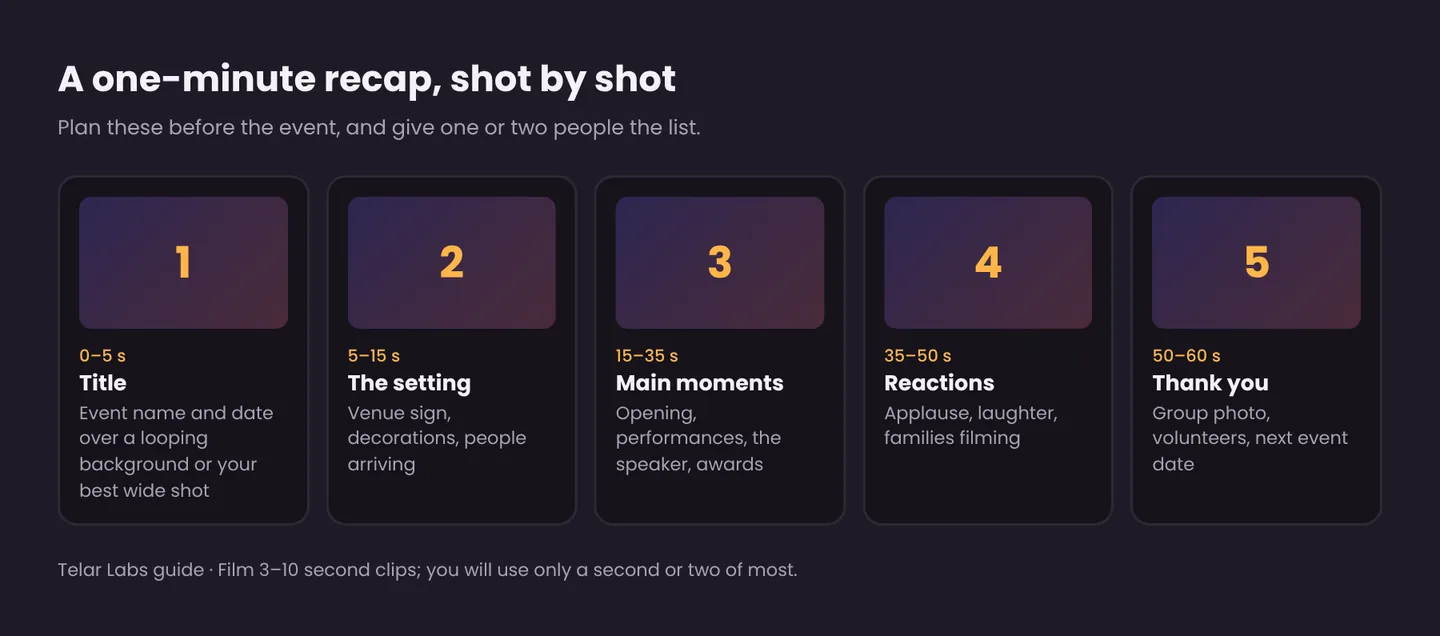
Ask one or two people to film, so you don't miss the best moments while you're busy running the event.
Check permission first, especially for children
Many schools and churches have rules about filming and posting minors. Before the event:
- Check your school's or organization's media policy, and whether parents have signed consent forms.
- Avoid showing children's full names, sections or schools together with their faces in public posts.
- Prefer wide shots of groups and performances to close-ups of individual children whose parents haven't agreed.
- Remove any shot that a parent or guest asks you not to use.
During the event: filming tips
- Decide the shape first. Film vertically if the video is mainly for TikTok, Reels or Shorts, and horizontally for YouTube or a projector. See our guide on video sizes and safe zones.
- Film short clips. Three to ten seconds per clip is plenty. You'll use only one or two seconds of most of them.
- Hold still. Keep the phone steady with both hands, and move slowly. Shaky footage is the most common reason clips can't be used.
- Get close for sound. A phone's microphone picks up the room, not the speaker. If a speech matters, film near the speaker or use the sound system's recording.
- Film details. Hands clapping, a decorated cake, name tags, the program sheet. These "cutaway" shots make editing much easier.
After the event: edit in five steps
- Pick the best 15 to 25 clips. Delete the rest from your project. A recap of 45 to 90 seconds is usually enough for social media.
- Open with a title. The event name and date over an animated background or your best wide shot. A looping background from Telar Clips, such as gold bokeh for an awards night or Christmas lights for a December program, gives a polished opening in seconds.
- Cut to the music. Change clips on the beat. Most editors show the sound wave, so you can see where the beats fall.
- Keep the best moment for near the end. The winner announcement, the finale song or the group cheer.
- Close with a thank-you. Thank the volunteers, sponsors and guests, and add the date of the next event if you have one.
Music you're allowed to use
Popular songs are protected by copyright. Using them can get your video muted, blocked or taken down, especially on YouTube and Facebook. Safer options:
- The platform's own music library. TikTok and Instagram offer licensed music inside their apps. Note that business accounts often have a smaller, commercial-safe library.
- YouTube Audio Library. Free music and sound effects for YouTube creators, found in YouTube Studio under Audio Library. Check whether each track requires attribution.
- Royalty-free music sites that clearly allow use in videos. Read the license before you download.
- Your own performers. The school choir or church band is perfect, and the music belongs to your event.
Captions and text
Most people watch social videos with the sound off. Add short text over key moments: "Opening prayer", "Grade 4 dance", "Champion: Section B". Keep text short, large, and inside the middle of the screen so it isn't covered by the app's buttons.
Posting and sharing
- Post within a day or two, while people are still talking about the event.
- Tag the organization's page and use the event's hashtag if it has one.
- Send the link to the group chats of parents, members or alumni. They're the people most likely to share it.
- Keep the original files. Next year's promo video can reuse this year's best shots.
Planning the next event?
A recap is also the best advertisement for next year. Add a line at the end with how to register or buy tickets. If you're organizing a ticketed or registration event, see our reunion planning checklist and how to run a smooth event check-in.
Spotted a mistake or have a tip to add? Email [email protected]. We update our guides when tools and settings change.