How to Turn a Projector or TV into a Classroom Whiteboard
Interactive boards are expensive, but a projector or a TV is already in many classrooms. With a browser and the right setup, it can become a whiteboard you write on, save and reuse.
A digital whiteboard has real advantages over chalk or markers. You can prepare pages before class, write over pictures and worksheets, keep every page for next year, and never run out of markers. You don't need special hardware for any of it. You need a screen the class can see, a device to write on, and a whiteboard app that runs in the browser.
The examples below use PizarraPad, our free online whiteboard, but the setups work with most browser-based boards.
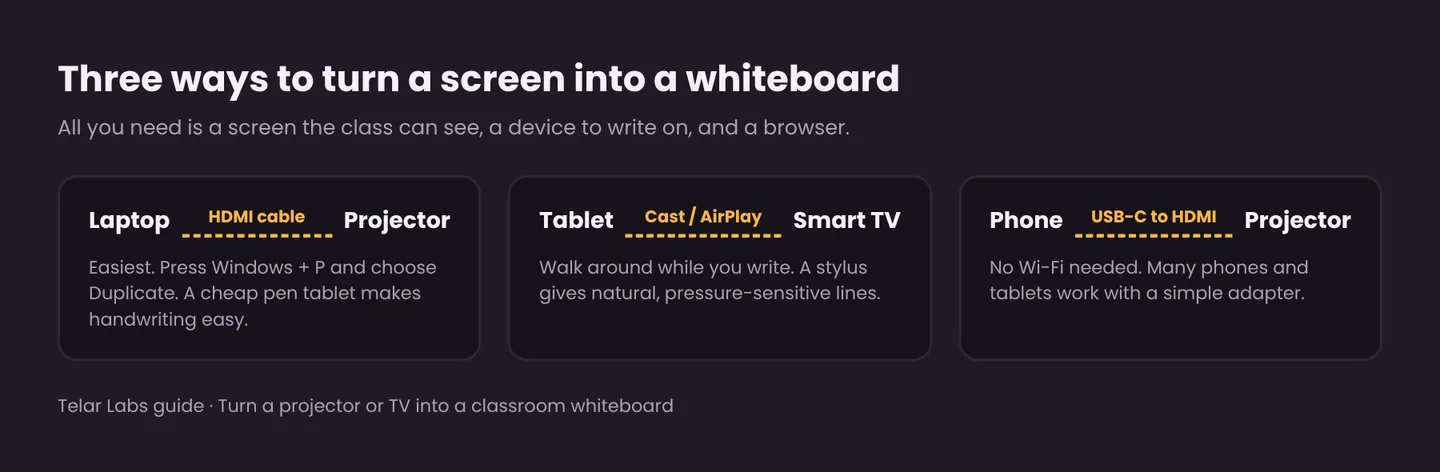
Setup 1: Laptop connected to the projector
This is the easiest and most common setup.
- Connect the laptop to the projector or TV with an HDMI cable (or VGA on older projectors).
- Mirror the screen. On Windows, press Windows + P and choose Duplicate. On a Mac, open Displays settings and choose to mirror the display.
- Open the whiteboard in your browser and switch to full screen.
Writing with a touchpad is awkward, so consider a cheap drawing tablet. A basic USB pen tablet costs much less than an interactive board and makes handwriting look natural. Typing also works well for neat notes, definitions and instructions.
Setup 2: Tablet or phone mirrored to the screen
If you'd rather write by hand, a tablet with a stylus is ideal. You can walk around the room, and the class sees your writing on the big screen.
- Android tablets and phones: use screen casting (often called Smart View, Screen Cast or Cast in quick settings) to a smart TV or a casting dongle.
- iPad and iPhone: use Screen Mirroring to an Apple TV or an AirPlay-compatible TV.
- No wireless option? A USB-C to HDMI adapter connects many tablets and phones straight to the projector.
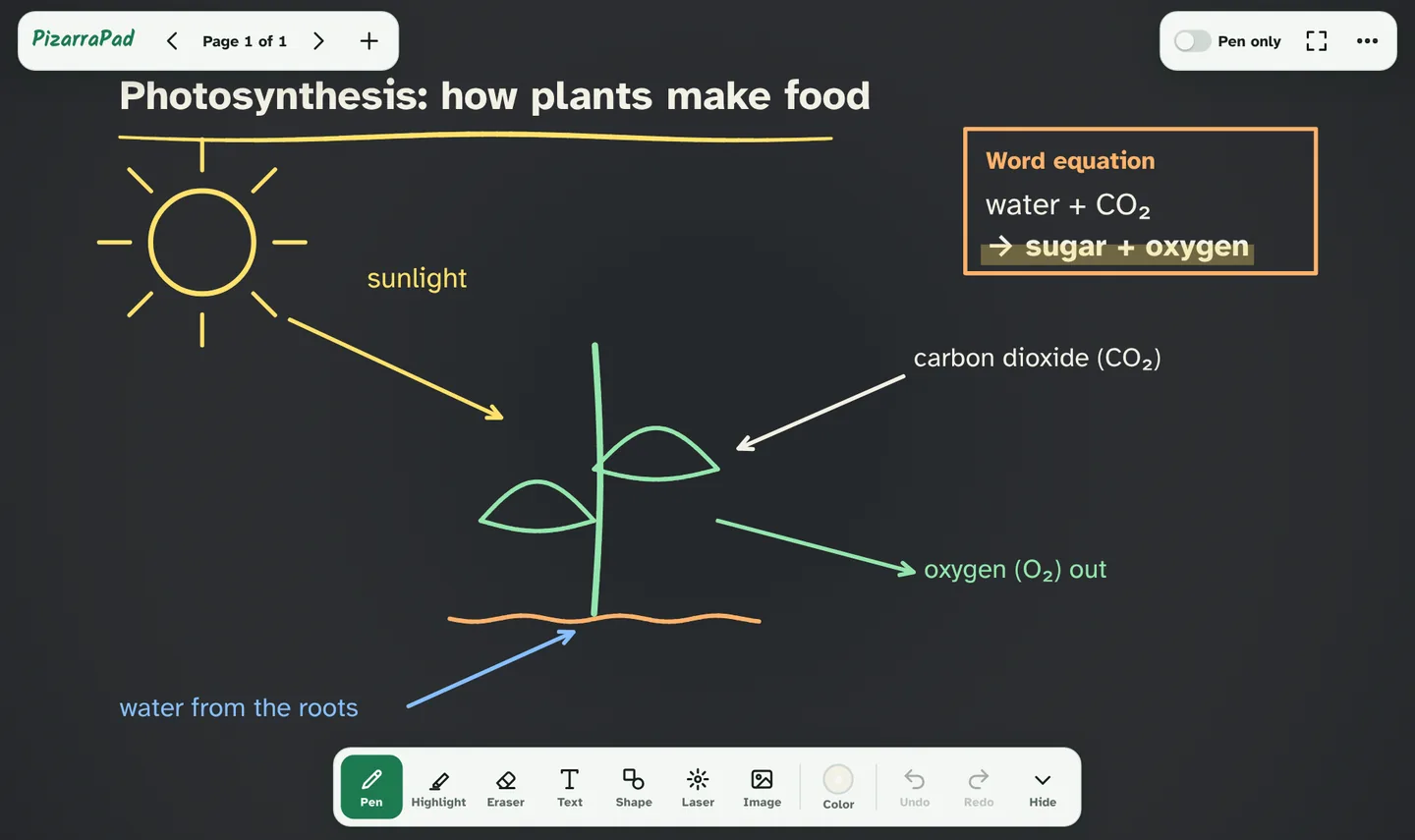
Styluses like the Samsung S Pen and Apple Pencil support pressure in PizarraPad, so lines get thicker when you press harder, just like a real pen.
Setup 3: Touchscreen laptop or 2-in-1
A touchscreen laptop connected to the projector gives you the best of both: a keyboard for typing and a screen you can write on with your finger or a pen. Fold it into tablet mode if your model allows it.
Making the board easy to read from the back row
- Choose the right background. A dark blackboard or greenboard with light writing is often easier to read on projectors, which struggle to show deep blacks on a white wall. A white board works well on bright TVs.
- Write bigger than you think. Check from the back of the room on the first day.
- Use two or three colors at most. One for main text, one for key words, one for corrections.
- Dim the lights near the screen if your projector is weak, but keep students' desks lit.
Features that make teaching easier
- Pages. Prepare several pages before class: the warm-up question, the worked example, the exercise. Switch between them instead of erasing.
- Pictures. Add a photo of a worksheet, a map or a diagram, and write on top of it.
- Shapes and lines. Straight lines, arrows, boxes and circles keep diagrams neat.
- Highlighter and laser pointer. Highlight a word in a paragraph, or point at something without leaving a mark.
- Save as image. Save a page and share it with students who were absent.
When the internet is unreliable
Many classrooms have weak or no Wi-Fi. Choose a board that keeps working offline. PizarraPad works without internet after you've opened it once while online in the same browser, and it saves your pages on your own device automatically. You can also install it like an app from Chrome or Edge with Install app, or on an iPad with Share → Add to Home Screen.
See also Teaching when the Wi-Fi drops for more ideas.
Common problems and fixes
- The projector shows "No signal". Check that the projector is set to the right input (HDMI 1, HDMI 2, VGA), and press Windows + P again.
- The image is cut off at the edges. In your computer's display settings, change the resolution to one the projector supports, often 1280 × 720 or 1920 × 1080.
- Writing lags behind the pen. Close other apps and browser tabs. Wireless mirroring adds a small delay; a cable is faster.
- Text looks blurry. Use the same resolution on the laptop and the projector, and adjust the projector's focus ring.
- My saved boards disappeared. Browser-based boards often save in the browser. Clearing browser data removes them, so save important pages as images.
Start small
You don't need to change everything at once. Try one lesson with a prepared page or two, then add pictures and saved pages as you get comfortable. For activity ideas, see 10 whiteboard activities for the projector classroom.
Spotted a mistake or have a tip to add? Email [email protected]. We update our guides when tools and settings change.